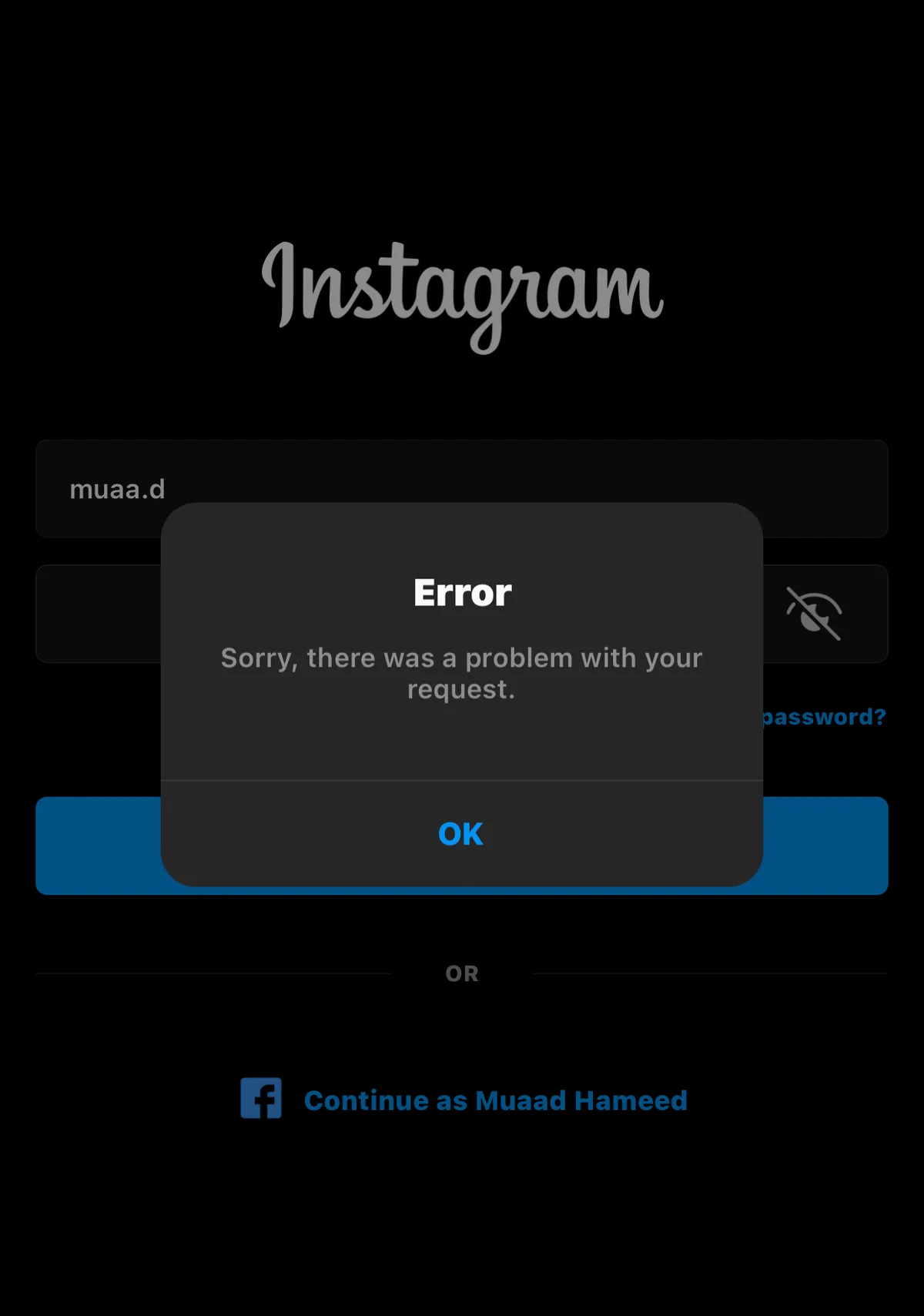
Nothing stops a scroll like a login error. The screen reloads, the password fails, and the feed stays out of reach. The good news is that most Instagram login problems trace back to a handful of causes, and each one has a known fix.
Instagram runs on almost every device. The Meta-owned service is available on iOS, Android, Windows, and the Web, so a fix on one platform often works on all of them.
Work through this guide in order. Each section handles one family of errors, and the easy fixes come first, so do not skip ahead unless you know the cause.
Wrong Password and Reset Loops
The most common error is also the simplest. If the app rejects your password, use the app's reset flow and pick a new password you have not used elsewhere. Wait a few minutes between attempts, because repeated tries can trigger a temporary lock. We covered a connected angle in Instagram Fonts: Where to Find Them and How to Use Them Well.
If the reset email arrives late, check your spam folder and any filters that sort mail automatically. Request the code only once at a time, and enter it soon after it arrives, since codes expire quickly.
Prevent repeats of the problem too. Store passwords in a manager rather than in a note, and turn on login alerts if your device offers them. Small habits keep the next lockout short.
Verification Code Troubles
Verification codes fail for boring reasons. A phone with no signal cannot receive a text message, and a full inbox can block new ones. If you use an authentication app, check that your phone's clock is set to automatic, because time drift breaks the codes.
Save backup codes when you set up extra security. Store them offline, not in a screenshot folder on the same phone. If one method fails, try the backup method before you panic.
Travel can complicate codes as well. Roaming, new SIM cards, and time zones all interfere, so set up a second method before a trip and keep the backup codes with you.
App Crashes and Error Screens
When the app itself misbehaves, start with the basics. Update the app, restart the phone, and clear space if storage is full. The app has changed a great deal over the years, so an old version may not work well with the servers it now meets.
If updates fail, remove the app and reinstall it. Your account lives on Instagram's servers, not on your phone, so a reinstall will not delete your photos or followers. Readers following this should also see How Instagram account recovery works after a hack.
Security Checks and Locked Accounts
Sometimes the block is not technical. A login from a new country or device can trigger a security check. Follow the steps the app shows, confirm your identity if asked, and change the password once you are back in.
Set your account to private if you want control over who follows you. On Instagram, a private account requires you to approve any new follower requests. That setting reduces unwanted attention on the account itself.
If a check keeps looping, clear the app's cache from your phone's settings or try the web version. The web flow often finishes a stuck verification that the app keeps repeating.
When Nothing Works
If every fix fails, the problem may be an outage. Test the service from a browser instead of the app. If the web version works, the trouble is local to your device. If nothing loads anywhere, wait an hour and try again.
Still locked out after that? Use the official help channels inside the app's settings, and never a third-party site that promises instant access. Sites that ask for your password to fix a login are a risk to your account.
Conclusion
Instagram login problems look scary and rarely are. Work from the simple fixes to the deeper ones: reset the password, check the codes, update the app, then rule out an outage. Most accounts come back within one calm session, and the steps above cover almost every error you will meet.