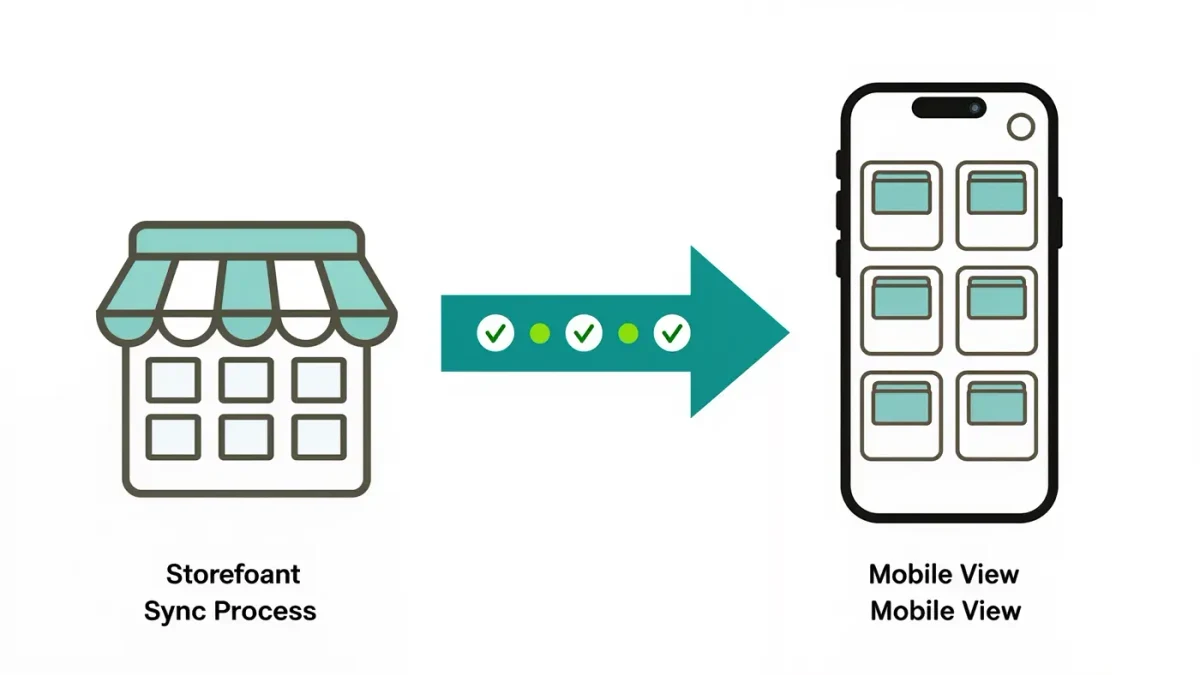
Connecting Shopify to Instagram means syncing your store's product catalog to Meta's commerce systems so your items can appear in shop surfaces and be tagged in your content. The general path is stable: set up Commerce Manager, connect Shopify as the catalog source, submit for review, then tag products once approval lands. Exact screens and naming change over time, so follow Shopify's current documentation and the help center as of February 2026 for the live steps.
This guide describes the standard integration flow that both companies document publicly. LIVE INSTAGRAM is an independent publication, not affiliated with Instagram, Meta, or Shopify, and interface details — menu names, fields, and review timelines — are the things most likely to differ from what you see. Availability of shopping features varies by region and account eligibility.
What has to be true before you connect anything?
Both platforms gate commerce features, and the fastest way to a smooth setup is meeting the gates before clicking anything. On the Meta side, commerce eligibility generally requires a Professional account in good standing, compliance with commerce policies, and accurate business information. On the Shopify side, you need an active store with products that have correct titles, descriptions, prices, and images.
Check these items first:
- Your Instagram account is a Professional account, not personal.
- Your store's products comply with Meta's commerce policies; some categories are restricted.
- Product data — price, availability, descriptions, images — is complete and accurate in Shopify.
- Your website domain and business details are verified where required.
- Your market is one where shopping features are currently offered.
Skipping this audit is the main cause of rejected catalogs. Fixing data inside Shopify first is far easier than chasing item-level errors inside a commerce dashboard after submission.
How does the Shopify-to-Instagram connection actually work?
The integration is a data pipe, not an app bolted onto your profile. Shopify holds your product data; Meta's Commerce Manager holds the catalog that Instagram reads from; the connection keeps them synchronized. When you change a price or stock level in Shopify, the update flows to the catalog, and what viewers see on Instagram follows.
The conceptual chain looks like this:
- Shopify store — the source of truth for products, prices, and inventory.
- Sales channel connection — links Shopify to Meta's commerce systems.
- Commerce Manager catalog — the synced product list Meta uses.
- Instagram surfaces — profile shop presence and product tags in content.
Understanding the chain matters for troubleshooting: if a product shows the wrong price on Instagram, the bug almost always lives in the Shopify data or the sync, not in the Instagram app.
What should product listings look like before syncing?
Catalog quality decides how your products read once they surface on Instagram, and it is entirely under your control inside Shopify. A listing that converts needs a specific title, a description that answers the buyer's first three questions, one clear primary image, and honest availability. Generic titles like "candle, large" do far less work than "soy candle, cedar and fig, 40 hours".
Before your first sync, review every field the catalog will carry:
- Title: product name plus the one variant detail that matters most.
- Description: materials, sizing, care, and shipping expectations in plain language.
- Images: clean primary photo on a neutral background; avoid overlays and borders.
- Price and availability: exactly what you will honor at checkout.
- Category and attributes: accurate, since they feed search and policy checks.
It also pays to align expectations with what buyers ask in DMs. If a product ships in five days or runs small, say so in the description. Every question the listing answers in advance is a message your inbox does not receive, and a buyer who feels misled by a thin description is a return request waiting to happen.
What are the setup steps?
The sequence below reflects the documented flow; menu labels shift between versions, so match by intent rather than exact wording. Per the help center as of February 2026, the entry points live inside Shopify's sales channels and Meta's Commerce Manager.
- In Shopify, find the Meta sales channel and connect your Shopify account to your Meta business assets.
- Choose or create the business portfolio and catalog that will receive your products.
- Enable the shop feature and select Shopify as your catalog source so inventory stays in sync.
- Confirm account connection in Instagram settings so the Professional account is linked to the right business assets.
- Submit your shop for review and wait for the decision; reviews are not instant.
- After approval, tag products in posts, Stories, and Reels where tagging is available to you.
Two failure points dominate support forums: connecting the wrong business portfolio, which sends the catalog to an account you do not control, and submitting for review before product data is clean. Both are avoidable with ten minutes of verification at steps two and five.
How do you handle review and common errors?
Review exists to confirm eligibility and policy compliance, and its duration varies; neither company promises a fixed timeline. If your submission is rejected, the notification usually points to a reason category rather than a specific item, and you fix, resubmit, and wait again.
Recurring issues and their usual fixes:
| Symptom | Usual cause | Where to fix |
|---|---|---|
| Products missing on Instagram | Item not synced or excluded from the channel | Shopify product status and channel visibility |
| Wrong price shown | Stale sync or currency mismatch | Shopify pricing; then trigger a sync refresh |
| Tag button unavailable | Approval pending or feature unavailable in region | Commerce Manager status; check availability |
| Account not linked | Wrong business asset permissions | Business settings and page connection |
Sync delays of a few hours are normal after bulk edits. If a product stays wrong for more than a day, remove and re-enable it in the channel rather than editing around the problem.
What changes after the shop is live?
Once approved, your catalog works quietly in the background, and your job shifts from setup to merchandising. Products can be tagged in organic content, the profile can surface a shop presence where available, and every price or stock change in Shopify propagates automatically. You stop thinking about the plumbing and start thinking about which products deserve placement.
A sustainable weekly rhythm:
- Tag at least one relevant product in shoppable content where the feature is available.
- Check for item-level errors in Commerce Manager.
- Update any changed prices or discontinued items in Shopify first.
- Watch which tagged products get taps and plan the next content around them.
Treat the connection as infrastructure. The sellers who benefit most are not the ones who configure it once and forget it, but those who keep the underlying catalog clean enough that the sync never has anything to complain about.